
Webflow SEO for Service Businesses: A Practical Guide
Webflow has become a popular choice for contractors, clinics and other service businesses that want a website that looks custom without a developer on call. The design flexibility is real, and so are the Webflow SEO capabilities. But Webflow doesn’t do SEO for you. A beautiful Webflow site can still be invisible on Google if a few settings are wrong.
This guide covers how to set up a Webflow site so it ranks, the mistakes we see most often, and how Webflow compares with WordPress for local businesses.
What Webflow Handles Well for SEO
Webflow produces clean code, loads pages from a global CDN and generates an XML sitemap automatically. Every page has fields for a custom title tag, meta description and Open Graph details, and you can set 301 redirects directly in the hosting settings. You can also add structured data through custom code embeds. In short, there’s nothing a local business needs for SEO that Webflow can’t do.
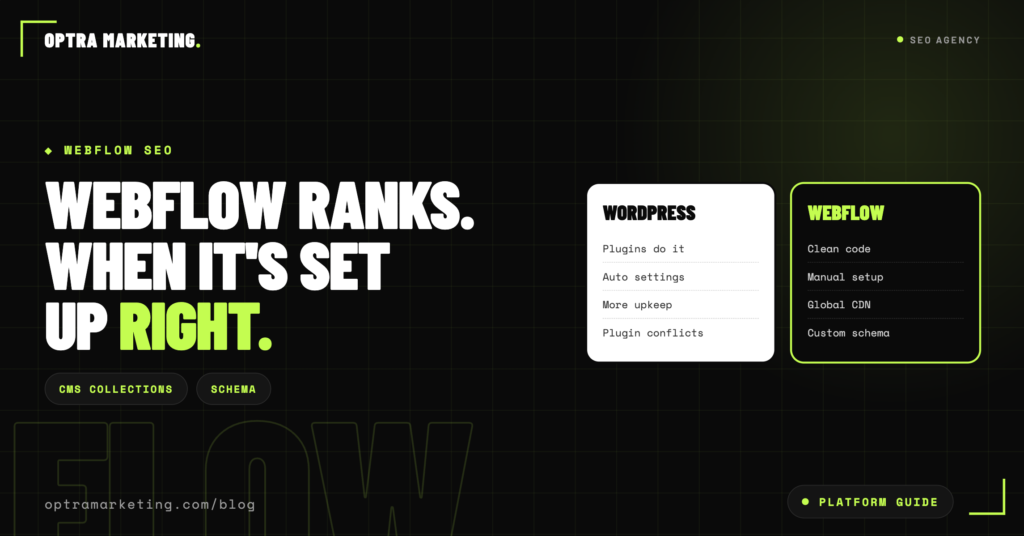
The difference from WordPress is that there are no plugins doing the work in the background. Settings have to be configured deliberately, page by page and collection by collection.
Setting Up Static Pages
Your homepage, about page and main service pages are usually static pages in Webflow. For each one, open the page settings and write a unique title tag and meta description that name the service and location. “Kitchen Remodeling in Bend, OR | Company Name” will do far more than “Kitchen.”
Check the slug while you’re there. Short, descriptive slugs such as /kitchen-remodeling are better than auto-generated ones. Make sure each page uses a single H1 heading, set in the Designer, and that headings follow a logical order rather than being chosen for their font size.
Using CMS Collections for Services and Locations
Webflow’s CMS is ideal for location pages, service pages and blog posts, because one template generates many pages. That’s also where the biggest Webflow SEO risks sit.
Give Every Collection Item Unique SEO Fields
Every item in a collection should have its own SEO title and meta description, pulled from dedicated fields rather than a single shared template line. Add fields for unique content, such as local projects, neighborhoods served, FAQs and reviews, so each page is genuinely different. Otherwise you end up with dozens of near-identical pages that Google reads and then leaves crawled but not indexed.
Avoid Static and CMS Duplicates
Be especially careful when service pages exist both as static pages and as CMS items. Webflow places collection items under the collection’s folder, so a CMS page might live at /service/kitchen-remodel while a static version sits at /services/kitchen-remodel. If both are live, you’ve created duplicate URLs that split your rankings. Pick one version, redirect the other and link only to the one you keep.
Redirects, Canonicals and Indexing Settings
Redirect Every Slug Change
Whenever you rename a slug or restructure a folder, add a 301 redirect from the old URL in your project’s hosting settings. Webflow won’t do it automatically, and every unredirected change breaks links that customers and Google already use.
Set a Global Canonical URL
In the SEO settings, set the global canonical URL to your preferred domain so every page declares a consistent canonical.
Check Two Indexing Controls
First, make sure the Webflow staging subdomain (yoursite.webflow.io) is excluded from indexing so it doesn’t compete with your real domain. Second, review individual pages and collections for options that hide them from search engines, particularly after a redesign, when new pages are often hidden until they’re ready and a stray noindex tag can keep a key service page out of Google for months.
Schema and Images in Webflow
Add Schema Markup Manually
Webflow doesn’t add schema markup by default. Add LocalBusiness schema to the homepage through custom code in the page settings, and consider Service and FAQ schema on relevant pages. For CMS pages, you can build schema dynamically by inserting collection fields into an embed. If you’re unsure whether it’s worth the effort, it helps to understand what schema markup actually does for local businesses.
Optimize Images and Alt Text
Use Webflow’s responsive image settings and compress large images before upload. Add descriptive alt text in the asset panel, describing what the image shows: “Finished kitchen with white shaker cabinets and quartz island” rather than “kitchen1.” Well-labelled project photos do more than tick a box, because images and video help you rank in Google and AI search alike.
Common Webflow SEO Mistakes We Find
- Staging subdomains indexed alongside the live site.
- Duplicate static and CMS versions of the same page.
- Slug changes made without redirects.
- Every CMS item sharing the same title tag pattern with no unique copy.
- Heavy animations and interactions slowing mobile load times.
- Service pages left hidden from search engines after a redesign.
Most of these can be fixed in an afternoon without touching the design.
WordPress vs Webflow SEO: Which Is Better?
For most service businesses, the platform matters far less than how it’s set up. WordPress relies on plugins for SEO features, which makes it flexible but adds maintenance and occasional conflicts. Webflow keeps things tidier but requires manual configuration. A well-built site on either can rank at the top of local results, so if you already have a Webflow site you like, there’s rarely an SEO reason to migrate. A sluggish site that drives customers away and thin content hurt far more than the choice of builder.
Frequently Asked Questions
Is Webflow good for SEO?
Yes. It produces clean code, fast hosting, automatic sitemaps and full control over titles, descriptions, redirects and schema. Results depend on configuration and content, not the platform itself.
Should I move from Webflow to WordPress to rank better?
Usually not. Migrations carry real risk to existing rankings, and Webflow can do everything a local business needs. Fix the setup first and judge the results.
How do I add schema markup in Webflow?
Paste JSON-LD into the custom code section of the page settings, or into an embed element. For collection pages, add an embed to the template and insert CMS fields to make the schema dynamic.
Why is my webflow.io address showing in Google?
The staging subdomain hasn’t been excluded from indexing. Turn on the option that disables subdomain indexing in your SEO settings, and the staging URLs will drop out over time.
Do I need any third-party tools for Webflow SEO?
Not to rank. Google Search Console is essential, and a crawler helps with audits, but everything else can be handled inside Webflow.
Webflow SEO Without Starting Over
Plenty of Webflow owners have been told by an SEO firm that nothing can improve until the site is rebuilt. At Optra Marketing, we leave the design you’re happy with exactly as it is and work inside your existing Webflow project instead, correcting structure, indexing settings, redirects and content behind the scenes. This is the same technical SEO work we do on any platform, adapted to the way Webflow’s Designer and CMS actually behave.
Because changes are being made on a live site, you deal directly with the core SEO team doing the work, not an account manager passing notes back and forth. Every plan is month to month, so the only reason to stay is that rankings and calls keep climbing. Book a free strategy call, and we’ll open up your Webflow settings together and point out what’s holding the site back.
